
Integrations Available
Exlink Connector for Salesforce
Send a Lead or Contact from Salesforce to the sponsor you recruit for, as an application in the sponsor's Exlink, with its files. The application's status, program and placement come back onto the same record.
Version 0.3.0.3 · Enterprise and Unlimited Editions · Leads and Contacts
Send to Exlink, Right From Salesforce
Your team keeps working in Salesforce. The connector adds two buttons to Leads and Contacts: Send to Exlink and Sync from Exlink.
One button on the record
Send to Exlink sits on your Lead and Contact pages. The first send creates the application at the sponsor; later sends update only what changed.
Updates and duplicates handled
Once the applicant has submitted, changes need a confirmation. If the sponsor already has an applicant with the same email, Exlink catches the duplicate and offers to link the record to it and update it.
Files with a document type
Give each attached file an Exlink Document Type, such as Passport or Transcript, and it is uploaded with the application. Files can be up to 10 MB each.
Status back on the record
Sync from Exlink brings back the application's status, program and placement when you press it, or on a daily or weekly schedule.
Exlink never calls into your Salesforce org
There is no Connected App, no OAuth flow and no integration user. The package calls out to the sponsor's Exlink with the key it received when the connection was approved, and that key can be revoked on Exlink. Only the fields mapped on Exlink become part of the application.
Mapped on Exlink, Field by Field
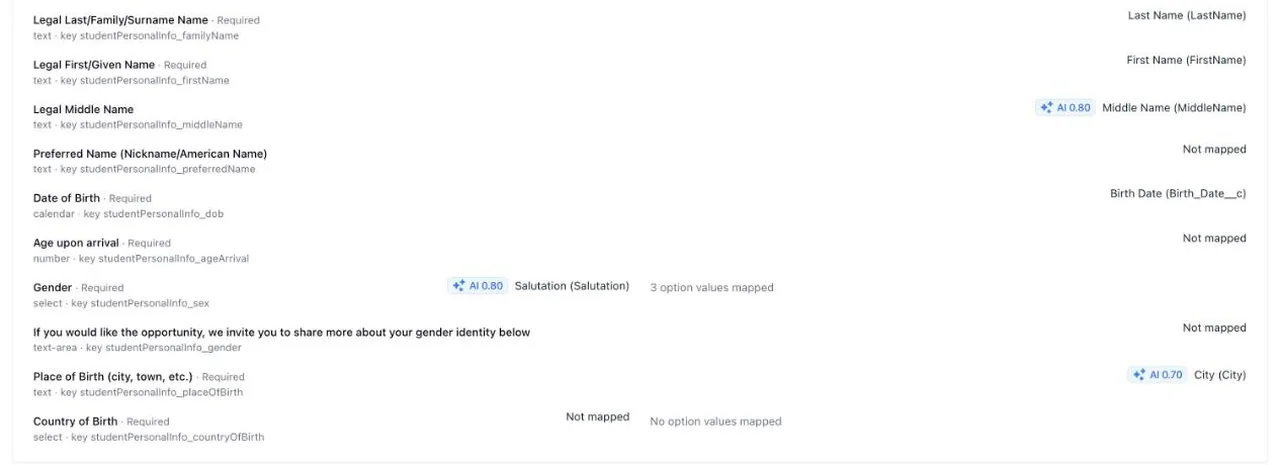
The mapping lives on Exlink, not in Salesforce. For each of the sponsor's application forms, a member of your agency picks the Lead or Contact field that answers each question.
AI suggestions you review
Suggest with AI proposes a field for each question, with a confidence badge. Nothing is saved until a person has reviewed it.
Picklist values
Map your picklist values onto the form's options, for example Mr., Ms. and Mx. onto Male, Female and Other.
File slots
Each Exlink Document Type becomes a file slot that you map onto the form's file questions.
Refresh fields
Added or changed fields in Salesforce? Refresh fields reports what changed and which mappings need review, with a link to each one.
What Comes Back Onto the Record
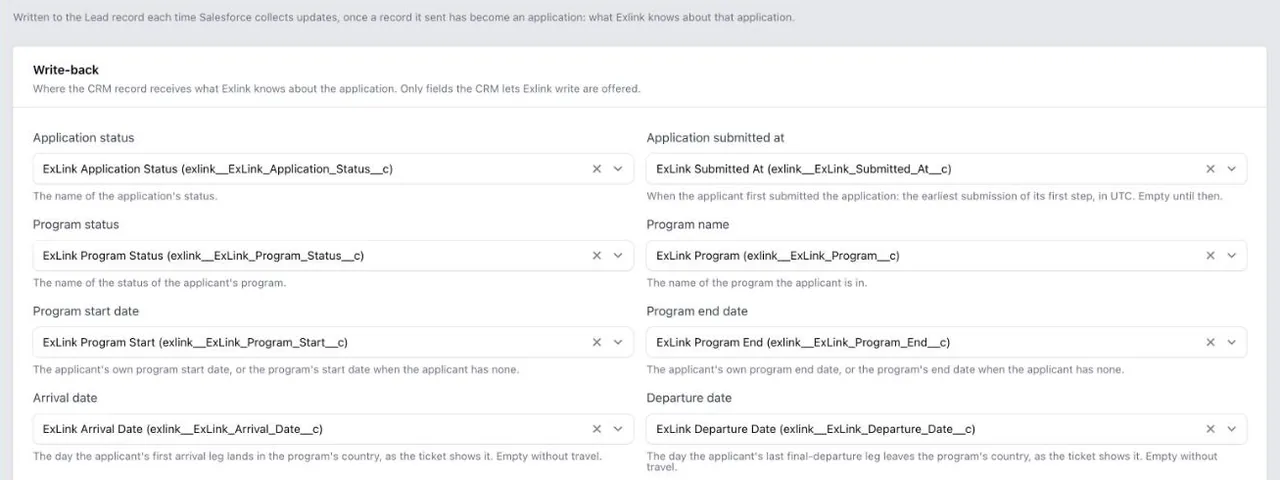
The package adds Exlink fields to Lead and Contact. Each time Salesforce syncs, Exlink fills in what it knows about the application, and the write-back tab on Exlink sets which field receives what.
- Exlink Application Status
- Exlink Submitted At
- Exlink Program Status
- Exlink Program
- Exlink Program Start
- Exlink Program End
- Exlink Arrival Date
- Exlink Departure Date
- Exlink Placement Status
- Exlink Host Family
- Exlink Host Family City
- Exlink Host Family State
- Exlink Application (a link to it)
- Exlink Synced At
What You Need
Enterprise or Unlimited Edition
The package installs in Salesforce Enterprise and Unlimited Edition orgs. Professional Edition is not supported.
A private install link
A private managed package (second generation, namespace exlink), released as version 0.3.0.3. We send you the install link.
A Remote Site Setting per sponsor
Salesforce only calls the addresses you allow, so you add one for each sponsor's Exlink. Connect to Exlink shows the exact address when one is missing.
About an hour of an admin's time
Installing, permissions, page layouts and the first connection take a Salesforce admin about an hour.
Setup, Step by Step
Steps 1 to 3 happen once in your org. Steps 4 to 6 happen once for each sponsor you connect.
- 1
Install and assign
Install the package for admins only from the link we send. Assign Exlink Admin to whoever connects sponsors, and Exlink User to everyone who sends records.
- 2
Place buttons and fields
Add Send to Exlink and Sync from Exlink to your Lead and Contact page layouts, with an Exlink section for the fields you want back. A package cannot change standard layouts, so this step is yours.
- 3
Set up document types
Add Exlink Document Type to your file details, with a value for each document your sponsors ask for. Passport, Photo, Transcript and Other come with the package.
- 4
Allow the sponsor
Add a Remote Site Setting for the sponsor's Exlink address. The Exlink directory, which finds your sponsors, comes with the package.
- 5
Connect to Exlink
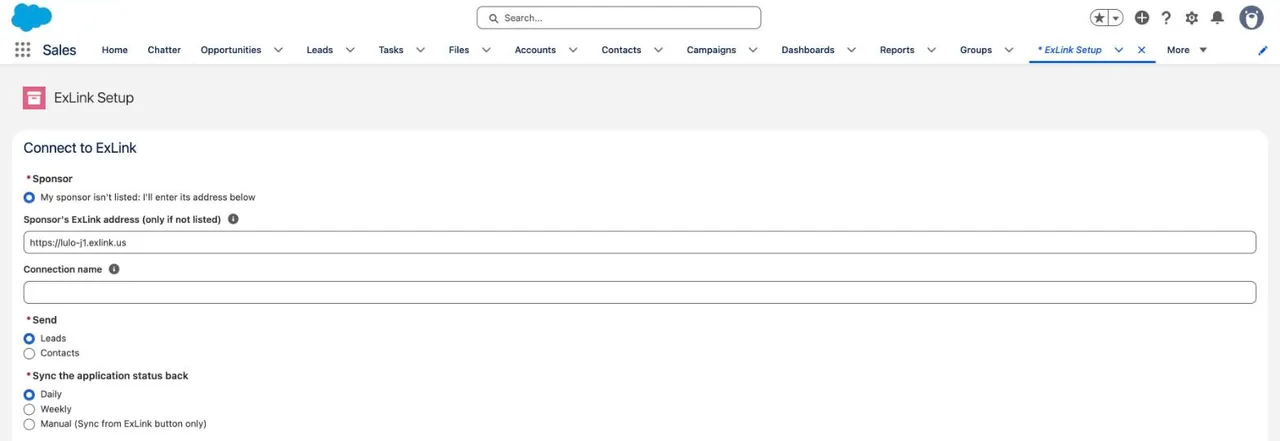
On the Exlink Setup tab, enter the email you sign in to Exlink with to find your sponsors, or type the sponsor's Exlink address. Choose Leads or Contacts and how often to sync, then press Connect.
- 6
Approve and map
A member of your agency approves the connection on the sponsor's Exlink with one click. Salesforce picks it up within a minute, and the member maps your fields onto each application form.
How It Is Priced
Rates depend on volume, so there is no price list: contact us for a quote.
A yearly fee
Covers the integration's maintenance and its upgrades.
A fee per application sent
A fee for each application the connector sends to a sponsor's Exlink.
Status sync included
Syncing the application's status, program and placement back onto the record is included.
Frequently Asked Questions
Which Salesforce editions does the connector support?
Enterprise and Unlimited Edition. The package does not install in Professional Edition orgs.
Can we try it in a sandbox first?
Yes. Besides the install link for your production org, there is one for sandboxes, so you can set the connector up and test it before you go live.
Does Exlink get access to our Salesforce org?
No. Exlink never calls into Salesforce, so there is no Connected App, OAuth flow or integration user. The package calls out to the sponsor's Exlink with the key it received when the connection was approved, and that key can be revoked on Exlink.
Can we send to more than one sponsor?
Yes. Connect each sponsor once, and approve each connection on that sponsor's Exlink. When several connected sponsors receive the same object, Send to Exlink asks which sponsor the record goes to.
What happens when we convert a Lead?
Map the Exlink fields from Lead to Contact in Salesforce's lead field mapping, so the values carry over. A converted Lead can no longer be updated, so its status sync reports an error on the record's Exlink Submission.
What if a file does not upload?
The record's Exlink Submission shows which file did not land and why, even when the application itself was created. Attach a new version of the file and send the record again.
How much does the Salesforce connector cost?
A yearly fee that covers maintenance and upgrades, plus a fee per application sent. Status sync is included. Rates depend on volume, so contact us for a quote. Contact us →
Other Ways to Connect
Zoho CRM Connector
A private Zoho CRM extension, installed from a link for your Zoho data centre. Send Leads, Contacts or custom-module records to a sponsor's Exlink, with mapping and write-back on Exlink.
Explore the Zoho CRM Connector →Exlink API
For agencies without a CRM connector or Leepr: your own API key to the same Exlink endpoints the connectors use, for applications, files, status and travel.
Explore the Exlink API →Get the Salesforce Install Link
Tell us about your agency and the sponsors you recruit for, and we will send you the install link and a quote.